
How no-code CAD automation is reshaping repetitive workflows for mechanical engineers
What is a Macro ?
A macro is a script that automates a sequence of commands to execute complex tasks reliably.
It ensures fast, deterministic results, reduces human error, and enforces standards.
Beyond shortcuts, macros industrialize repetitive workflows, improve data reliability, and enable interoperability between tools like CAD, ERP, and databases.
Toward Business-Oriented Automation: A Specialized Approach
Macros have long been underused in mechanical engineering. While powerful, they were seen as a software engineering tool, often limited to VBA and inaccessible for most engineers. More advanced options like C# offer deeper CAD automation but remain out of reach for many teams, which continue to rely on manual workflows.
MecAgent Copilot closes this gap by removing the need to write or understand code. Mechanical engineers can now create advanced CAD automations directly through a simple interface, without programming expertise.
The result is faster workflows, less time spent on repetitive tasks, and more focus on real engineering work. Since launch, over 40,000 macros have been generated using this approach.
The 5 Most Used Public Macros
By analyzing the usage of our automations, a clear trend emerges. We have identified five essential macros that address the most recurring challenges in modern mechanical engineering. These are general-purpose macros that we have made publicly available on the MecAgent platform, allowing any MecAgent user to download and use them.
Each of these macros can also be fine-tuned or adapted to specific workflows when needed, giving engineers a flexible foundation that can evolve with their requirements while remaining accessible and ready to use out of the box.
Top 5 MecAgent Copilot Public Macros:
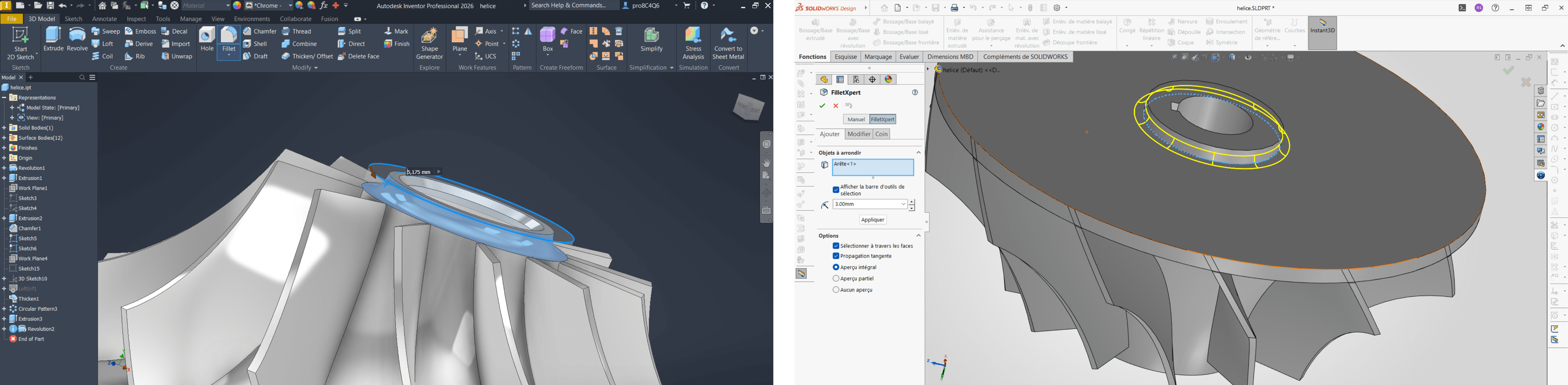
5. Automated Edge Fillet Creation
Core issue: Adding fillets across many edges is repetitive and error-prone. It usually requires lots of manual edge picking, redoing selections after model changes, and keeping radii consistent across similar features.
Function (Copilot contribution): User selects a set of edges (optionally with quick filters like “all sharp edges”, “all edges from selected faces”, or “edges in a given radius/length range”), then the macro applies a standardized fillet feature in one shot. Supports per-edge radius rules (single radius or mapped radii), preserves tangency where relevant, and can re-run/update after geometry changes.
Final impact: Faster, more consistent filleting with fewer missed edges, reduced rework after iterations, and cleaner adherence to design standards across parts and configurations.
4. Auto-Export PDF & Auto-Save
Core issue: Saving and exporting drawings requires several repetitive manual actions (BOM update, file save, PDF export), increasing clicks, wasted time, and the risk of human error.
Function (Copilot contribution): Automatic export of the active drawing to a multi-sheet PDF, with prior BOM table updates, file naming based on revision index, and silent document saving. The PDF is stored in the drawing folder or a dedicated PDF subfolder if present.
Final impact: Significant reduction in time spent on repetitive tasks and elimination of oversights.
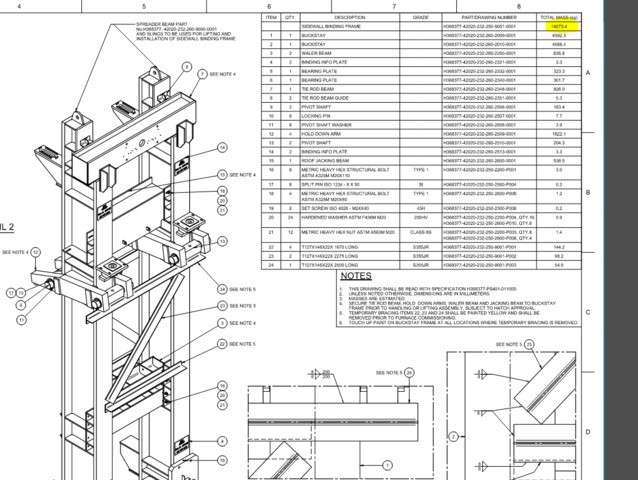
3. Part / Assembly Rotation
Core issue: Precise and repeatable positioning of a view or assembly component for visual inspection or presentation is unintuitive with mouse tools and lacks parametric control.
Function (Copilot contribution): Controlled rotation of the view (camera) or a selected component around a defined axis (X, Y, or Z), with user-configurable angle and rotation speed (RPM).
Final impact: Improved quality of design reviews and technical presentations through smooth, repeatable, and precise orientation control.
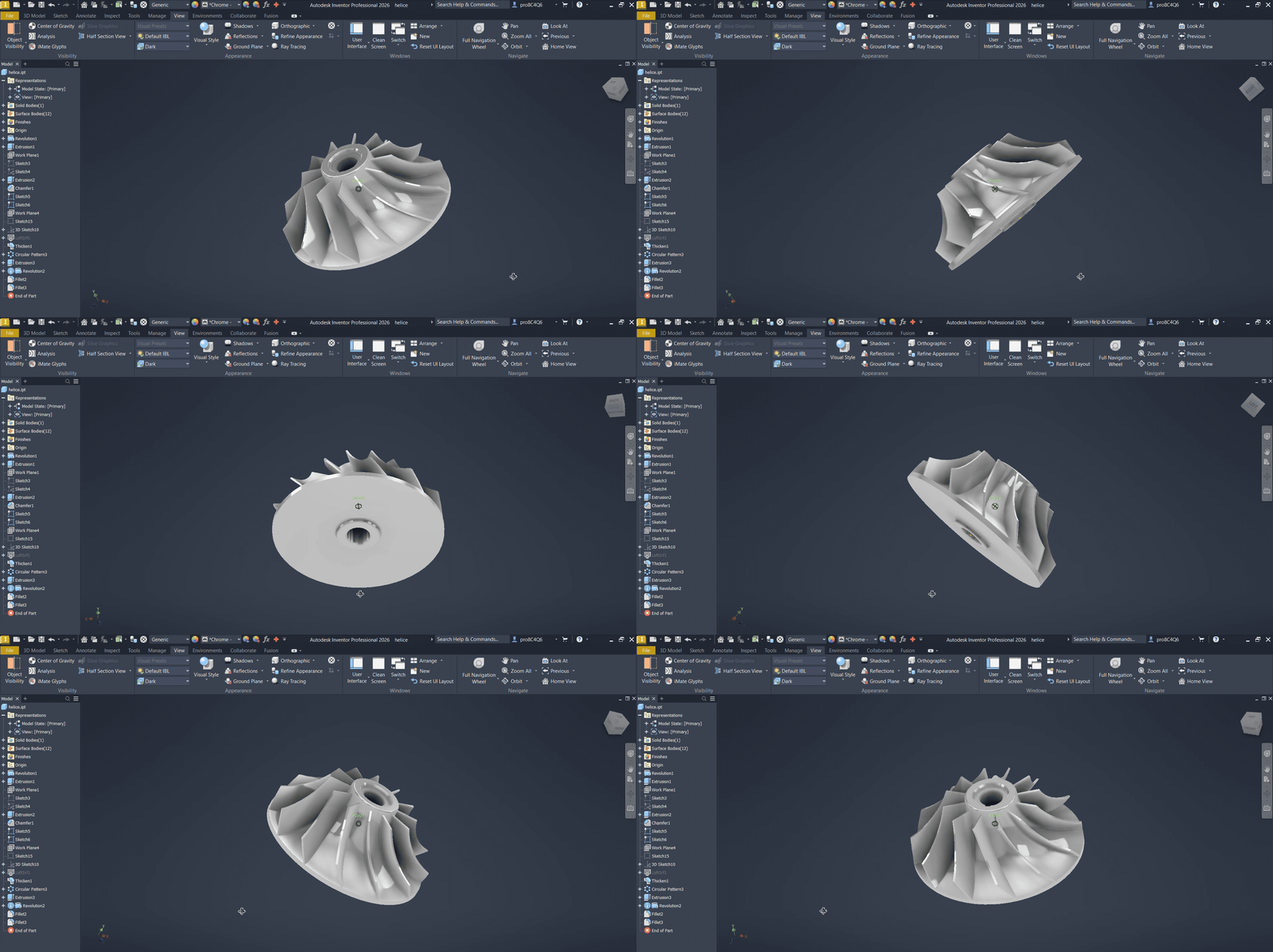
2. Display Dimensions Auto-Arrange
Core issue: Drawing readability is often degraded by disorganized or overlapping dimensions across views. Manually selecting and realigning them is repetitive and time-consuming, especially on complex drawings.
Function (Copilot contribution): Automatic selection of all displayed dimensions across every view of the active drawing, followed by automatic alignment for a cleaner and more uniform layout.
Final impact: Immediate improvement in drawing readability and significant time savings during finalization, while reducing the risk of misinterpretation on the shop floor.
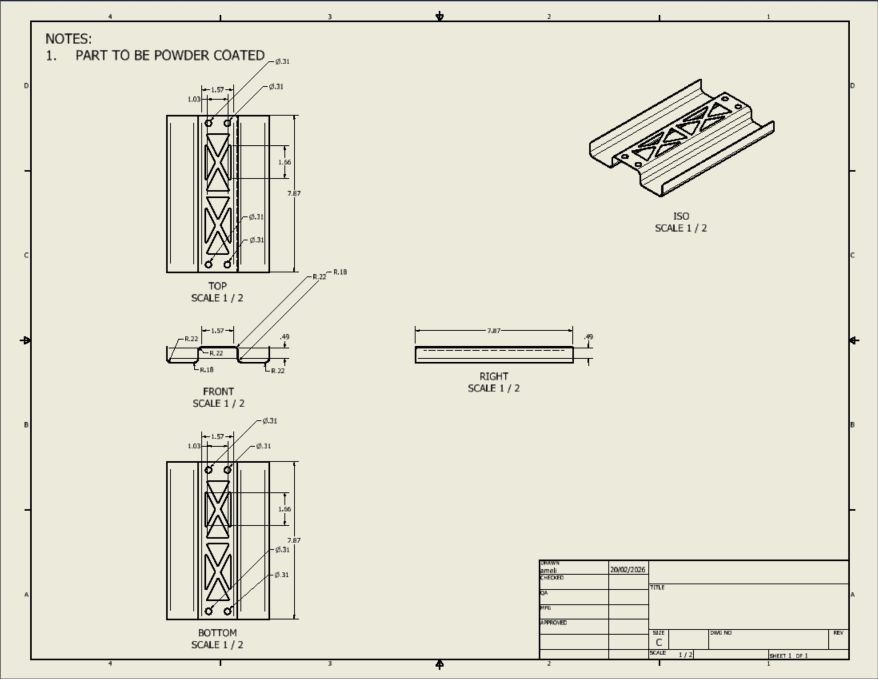
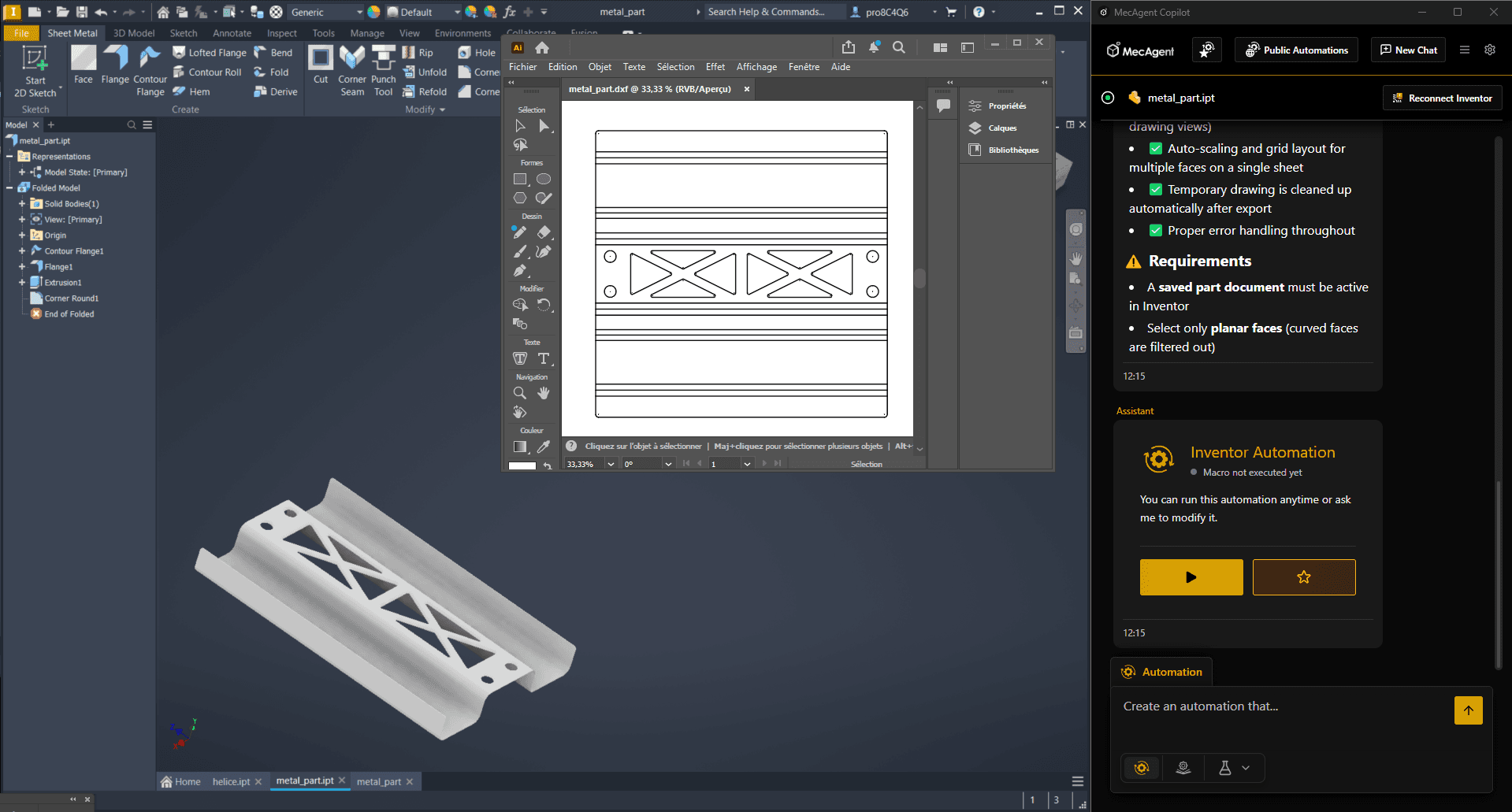
1. DXF Export Automation (Planar Faces)
Core issue: Exporting planar faces of a part into a usable DXF format usually requires creating intermediate drawings or performing repetitive manipulations, even though only simple geometric faces are needed.
Function (Copilot contribution): Manual selection of planar faces on a saved part, followed by a combined export into a single DXF file,with or without creating a drawing and with standardized orientation.
Final impact: Elimination of unnecessary intermediate steps and significant time savings when preparing simple data for cutting, trimming, or basic manufacturing operations.
Top 5 Public Macros Summary
| Macro | Key Issue | Copilot Contribution |
|---|---|---|
| 1. DXF Export (Faces) | Unnecessary drawing steps for simple faces | Direct export of selected planar faces into a single DXF |
| 2. Display Auto-Arrange Dimensions | Disordered and unreadable dimensions on complex drawings | Automatic alignment and spacing of all dimensions on a Drawings |
| 3. Precision Rotation | Lack of control during mouse-based design reviews | Parameterized rotation of part or assembly views using a defined axis, angle, or RPM. |
| 4. PDF & Save Auto | Multiple manual actions (BOM, save, export) leading to errors | BOM update + Save + Indexed PDF export in one click |
| 5. Automated Edge Fillet Creation | Manual filleting is slow, repetitive, and error-prone. | Automatically fillets multiple edges at once with consistent rules, removing manual edge-by-edge work. |
Top 5 AI Custom CAD Macros Summary
Beyond standard tools, the true value of the MecAgent AI Copilot lies in its ability to generate automations tailored to unique business workflows. Some of these macros have already been used more than 1,000 times by a single user since their creation, reflecting strong adoption in real production environments. Among the macros created, we observe major trends redefining operational efficiency:
5. Drawing Standardization and Layout Automation
These macros focus on fully standardizing drawings according to company-specific rules. With a single command, the macro reorganizes dimensions, enforces a predefined layout, applies the correct drawing template, and automatically places a company-specific BOM. This includes precise control over dimension positioning, spacing, annotation styles, title blocks, and BOM structure, ensuring that every drawing follows internal drafting standards without any manual adjustment.
4. Intelligent Navigation and Component Isolation in Assemblies
This category covers macros designed to drastically reduce navigation time in large and complex assemblies. The macro can instantly locate a component inside a deep feature tree or assembly structure, isolate it visually, and open it in a dedicated window or context for editing. This eliminates manual scrolling, searching, and repeated context switching when working on assemblies with hundreds or thousands of components.
3. Advanced Customization and Data Export Automation
These macros are heavily centered around company-specific customization and data extraction. With a single action, they can export custom properties, global dimensions, and metadata from an entire set of parts within an assembly. This includes generating tailored BOMs, renaming parts based on internal naming conventions, and extracting CAD data into external documents such as PDFs or Excel files. The exported data strictly follows enterprise rules, whether for manufacturing, purchasing, quality, or ERP/PDM integration, all triggered by one button.
2. One-Click Automation of Repetitive Modeling Actions
These macros automate simple but highly repetitive modeling tasks that normally require several clicks. For example, applying predefined constraints automatically, adding a specific fillet to every selected or touched edge as soon as the macro is activated, or transforming sketches by instantly converting lines into construction geometry. In some cases, the automation is event-based: as soon as the CAD designer performs a specific action, the macro reacts and applies standardized rules instantly, removing friction from everyday modeling operations.
1. Automation of Complete Documentation Pipelines
These macros automate the full transition from design to manufacturing documentation. Starting from a part or assembly, a single command generates the standard drawing, applies predefined dimensioning and tolerancing rules, updates the title block, saves the source files, and exports the final documentation into multiple required formats. For example, one macro can generate the drawing, export a PDF for manufacturing, a DXF for laser cutting, and an Excel file for production tracking, all while ensuring naming conventions and folder structures match the company’s internal processes.
Benefit: Reduction of technical clerical work after design, improved consistency across teams, and faster delivery of manufacturing-ready documentation.
The goal of these tools, whether from our standard library or custom-built, is to give time back to the project. By automating repetitive tasks, engineers can reclaim their core role: solving complex problems and innovating.
Top 5 AI Custom Macros Summary
| Rank | Macro Type | Summary |
|---|---|---|
| 5 | Drawing standardization | One click to reorganize dimensions, layout, template, and BOM according to company drafting standards. |
| 4 | Assembly navigation | Instantly locates a component in a complex assembly, isolates it, and opens it for editing. |
| 3 | Data customization & export | Exports properties, dimensions, BOMs, and part names to PDF or Excel in one click using company-specific rules. |
| 2 | Modeling micro-automation | Automates repetitive actions like constraints, fillets, or sketch rules instantly on click or on user action. |
| 1 | Documentation pipeline | Converts a model into a complete manufacturing package with drawings and multi-format exports automatically. |
CAD Macros, Finally Made Simple
Today, MecAgent Copilot makes macros accessible to all mechanical engineers and CAD designers worldwide thanks to AI models we trained specifically for mechanical engineering CAD macro use cases. While this may seem specialized to others, it represents a huge time saver for us as mechanical engineers and CAD designers. So take advantage of it and let’s boost our productivity together!
The MecAgent Team
Frequently Asked Questions (FAQ)
- Do I need coding skills to use or create macros?
No. That is precisely the value of the Copilot: it translates your needs expressed in natural language into functional scripts.
- Are my data and macros confidential?
Absolutely. Macros generated for your specific needs remain your industrial property.
- Are macros compatible with all versions of my CAD software?
Yes, for Inventor and SolidWorks up to version 2020. However, in some cases, certain macros may not work on all versions because some internal features are added in later releases of the software. That said, this only affects very specific functionalities and does not apply to the vast majority of macros.
- Can I modify a custom macro after it has been created?
Yes. A macro is a living tool. You can ask the Copilot to adjust a function, add extra safety checks, or modify an export format at any time.
Sources and Bibliographic References
Foundations of Automation and Software Engineering
Abelson, H., & Sussman, G. J. (1996).
**Structure and Interpretation of Computer Programs. MIT Press.
(Reference work on the concepts of abstraction and computational procedures.)
Microsoft Learn.
Technical documentation: *Automation and the VBA Object Model.
*Access the resource.
CAD / CAO and Engineering-Specific Applications
Microsoft Learn – Office VBA API Overview
https://learn.microsoft.com/fr-fr/office/vba/api/overview/
Autodesk Developer Network (ADN).
***AutoCAD AutoLISP & ActiveX Developer’s Guide.
*(Official documentation on interactions between scripts and geometric databases.)
Dassault Systèmes.
***SolidWorks API Help: Automating Tasks and Workflows.
*Official SolidWorks documentation.
Malpass, L.
***The SolidWorks API Series.
*(Specialized technical manual on macro-based automation in 3D design environments.)
Industrial Performance Management
Liker, J. (2021).
***The Toyota Way: 14 Management Principles from the World’s Greatest Manufacturer.
*McGraw-Hill.
(On principles of standardization and reduction of operational waste.)
Harvard Business Review.
***The Age of Continuous Transformation.
*(Analysis of the impact of software automation on technical management productivity.)
MecAgent Inc.
Download the Beta
Book a Demo
Download (Free)
Book a Demo
Other articles you might like
Learn how to increase your productivity with calendars
“Mythos.1” - Class AI in Mechanical Engineering and CAD Design
MecAgent Inc.
AI CAD Copilots in 2026: 7 Tools Compared for Mechanical Engineers
MecAgent Inc.
Claude Fable 5 x MecAgent 1.2.0 on CAD
MecAgent Inc.
Features
Pricing
AI CAD Community
Careers
Contact