

Introduction
What MecAgent is, what is new in version 2.0, what it can and cannot do yet, the requirements, and how to download it, sign in and connect it to your CAD software.
MecAgent is an AI CAD agent for mechanical engineers. You describe what you need in natural language (a part, a change to an assembly, a drawing or a repetitive task) and MecAgent plans the work, acts directly inside your CAD software and reports back.
Version 2.0 brings everything into one agent that understands your open document, searches for the right methods, builds features with an editable feature tree, and turns repetitive work into reusable automations.
Two ways to work
CAD Agent
LiveChat with the agent while it works in your open CAD session: model parts, edit assemblies, apply materials, drive equations, rename, export, create drawings and macros.
Background Tasks
AsyncHand off long jobs (Drawing-to-CAD, CAD-to-Drawing, Text-to-CAD, STEP-to-CAD) and get files back while your CAD software stays free for you.
MecAgent does not replace the designer. It speeds up modeling, documentation and repetitive work, but you stay in charge of design intent, validation and release.
Results depend on how precisely you describe the request: always review geometry, drawings and tolerances before releasing them.
General AI tools (ChatGPT, Gemini, Claude, Copilot…) are not built to operate CAD software. They guess API calls, skip steps and produce code that fails in the CAD software.
MecAgent was trained on real CAD workflows and hundreds of thousands of CAD automations, and it acts through dedicated CAD tools: it reads the model, runs features, checks the result and corrects itself.
When it writes an automation, the thinking happens at creation time. The automation then runs as a standard script: fast, predictable, and with no AI involved at run time.
V2.0 replaces the separate modes of V1.2 (Automation, CAD Copilot, MechE Expert, Text to STL/STEP, Online Part Finder) with one CAD Agent, and adds Background Tasks, General Knowledges and a model selector.
| Area | V1.2 | V2.0 |
|---|---|---|
| Core experience | Five separate modes to choose from | One CAD Agent chat that plans, searches, acts in your CAD software and creates macros when useful |
| 3D modeling | Simple parts only (sketch, extrude, revolve, holes, fillets, chamfers) | Text-to-CAD and STEP-to-CAD with an editable feature tree; parts designed in assembly context and mated |
| Assemblies | Materials, renaming, properties | Plus exploded views, equations, configurations and motion studies |
| Long jobs | Blocking, inside the chat | Background Tasks with a task list, status, activity log and downloadable outputs |
| Drawings | Active part or batch, simple views | Guided CAD-to-Drawing (standard, units, sheets, datums, critical surfaces) and Drawing-to-CAD |
| Context | Built-in engineering knowledge base | General Knowledges: your own document folders, attachable to any request |
| Inputs | Text prompt | Text, files, photos, STEP files, and Sketch on a capture of your CAD view |
| Models | One model | Model selector: MecAgent Max, High, Medium, Light, Extra Light, Fast |
| Automations | My Automations, Public Automations, Merge, Remix | The same library, plus Macro mode and Remix directly from the chat bar |
| Transparency | Final answer only | Live Task Progress and search steps while the agent works |
What you can do with MecAgent V2.0 today:
Model parts from text or a spec sheet, with an editable feature tree
Rebuild a supplier STEP file as a native, editable part
Design a new part in the context of an assembly, then mate it
Create exploded views and set up motion studies
Apply materials and appearances to all parts in one request and update the mass
Drive dimensions with global variables, equations and configurations
Rename and translate parts, features and files while keeping references
Bulk export STEP, PDF and DXF files for suppliers
Generate dimensioned drawings from parts (CAD-to-Drawing)
Turn a PDF or image drawing into an editable part (Drawing-to-CAD)
Create, save, share, remix and merge reusable macros
Use your own documents (standards, materials, suppliers) as context
Current limits to keep in mind:
Releasing drawings or parts without engineering review
Guaranteeing the certification or regulatory compliance of a drawing
Complex freeform or class-A surfacing from a vague description
Human-level reasoning on ambiguous instructions without dimensions or references
Applying company-specific rules that were never provided (add them as General Knowledges or templates)
Native support for CAD software other than SolidWorks: Inventor comes next, then Siemens NX and CATIA before the end of 2026
Guaranteed support for SolidWorks versions older than 2024
CAD software
SolidWorksTested on SolidWorks 2024, 2025 and 2026.
Operating system
WindowsWindows 10 or 11, 64-bit.
Account
FreeA MecAgent account, free to start.
Network
HTTPSAn internet connection, HTTPS on port 443.
Supported SolidWorks versions
Our technical team tests MecAgent on SolidWorks 2024, 2025 and 2026. MecAgent should also work on earlier versions, but we cannot guarantee it: some features are not available from one SolidWorks version to another, and the creation of certain macros in particular may cause problems on older versions.
| SolidWorks version | Status |
|---|---|
| 2026 · 2025 · 2024 | Tested and supported by our technical team |
| 2023 and earlier | Should work, not guaranteed: some features and macros may not work |
Company networks
MecAgent needs outbound access to its servers. If your company uses a firewall or a proxy, ask your IT department to allow proxy.mecagent.com on port 443 (TCP), and to allow the MecAgent installer and application.
Native support for other CAD software is coming in this order: Inventor first, then Siemens NX and CATIA before the end of 2026, then PTC Creo, Solid Edge, Fusion 360 and Onshape.
- 01SolidWorksAvailable now
- 02InventorNext
- 03Siemens NXBefore the end of 2026
- 04CATIABefore the end of 2026
- 05PTC CreoThen
- 06Solid EdgeThen
- 07Fusion 360Then
- 08OnshapeThen
Until then
Use the web app at download.mecagent.com/login. Background Tasks deliver STEP parts and PDF drawings that open in any CAD software: when you start a task, choose Other CAD Software (Output: STEP.) in Deliver for.
- 1
Go to the download page of our website.
- 2
Log in, or create a free account at download.mecagent.com/register. The same account works in the app and on the website.
- 3
In your account, open Download (top bar, just left of Dashboard) and click Download for Windows on the MecAgent Copilot for SolidWorks card.
- 4
Wait for the download to finish (about 333 MB).
- 5
Run
mecagent-copilot-setup.exeand let the installer finish. There is no ZIP file to extract anymore. - 6
If Windows SmartScreen blocks the installer, click More info, then Run anyway. The warning appears because Windows does not recognize the new installer yet.
- 7
Launch MecAgent and sign in with your MecAgent account.
- 8
Start your CAD software: MecAgent connects automatically, and you can type your first request.
- 1
Launch MecAgent. After the loading screen, the Log in window opens.
- 2
Sign in with your email and password, or with Google, Microsoft or Apple.
- 3
If two-factor authentication is enabled, enter the 6-digit code from your authenticator app.
- 4
Forgot your password? Click Forgot password?.
- 5
No account yet? Click Sign up.
- 1
Start your CAD software (today SolidWorks, tested on 2024, 2025 and 2026). MecAgent detects it automatically.
- 2
A green dot in the header means the connection is active. Click it to see the status of SolidWorks and of the Agent.
- 3
If one of them is Disconnected, click the refresh icon to reconnect.
General interface
The MecAgent window, its home page, the conversation, the side panel, the chat bar and its Add (+) menu, and the settings.
MecAgent runs as a standalone window next to your CAD software. Place it beside your CAD software: the agent works on the active document and shows its progress in the MecAgent window.
CAD Agent mode
DefaultChat with the agent; it acts live in your CAD software. Use it for modeling, assemblies, materials, renaming, exports and macros.
Background Tasks mode
Mode switchSwitch with the mode switch in the header. Start long jobs (drawings, Drawing-to-CAD, Text-to-CAD) and collect the files when they are ready.
- Side panel
- Your chats, tasks, knowledges and automations.
- Mode switch
- Switches between CAD Agent and Background Tasks.
- Connection status
- Green means connected. Click it to see the status of your CAD software and of the Agent, and to reconnect.
- Active document
- The CAD document the agent works on.
- Reload document
- Refreshes the active document.
- Plan usage
- Shows your plan usage limits.
- Profile
- Opens the settings (General, Account, Sound).
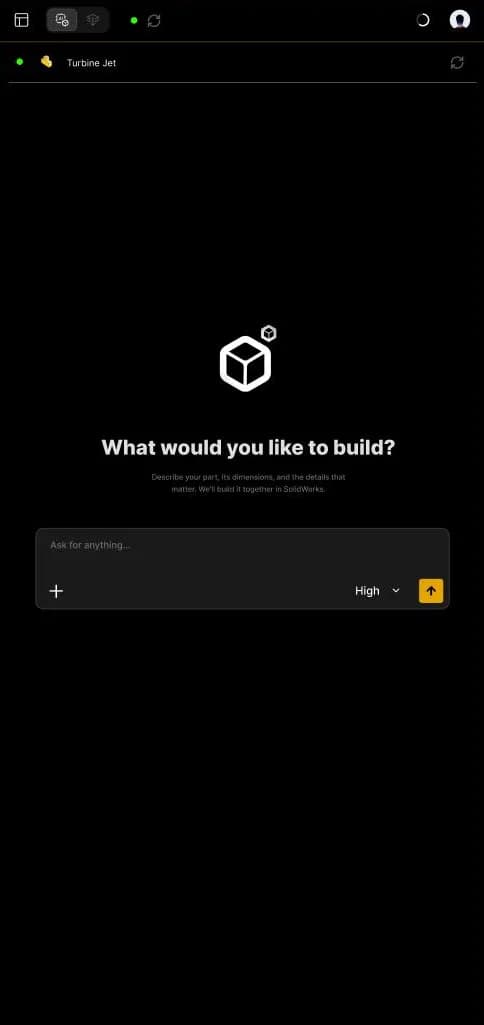
- Start screen
- Shown on a new chat.
- Request bar
- Describe what you want to build or do.
- Add (+) menu
- Files, knowledges, Macro mode, Remix and Sketch.
- Model selector
- From MecAgent Fast to Max.
- Send
- Sends the request; you can also press Enter.
- Your request
- With its time stamp. Edit, Retry and Copy let you edit and resend, regenerate, or copy it.
- Agent answer
- What was done in your CAD software. Copy and Retry copy or regenerate the answer.
- Automation card
- A macro created for your request, with its run status.
- Run Automation
- Runs the macro again in your CAD software.
- Add to favorites
- Saves the macro in My Automations.
- Code, Copy, Retry
- View the macro code, copy it or regenerate it.
- Knowledge chip
- The General Knowledges active in this chat.
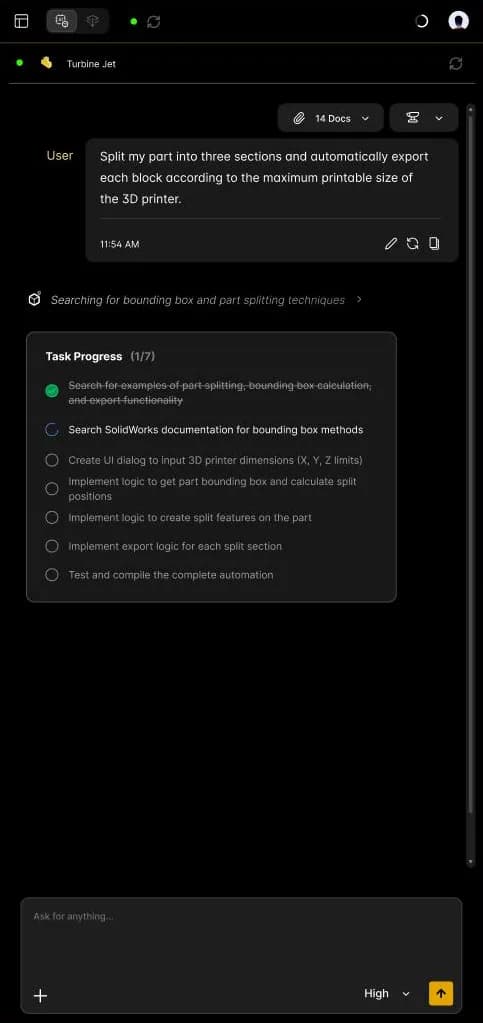
- Attached documents
- The files and knowledges used by this chat (e.g. 14 Docs).
- Request bar
- Continue the conversation.
While it works, the agent shows what it is searching and a live Task Progress list, so you always know where it stands.
- Search step
- What the agent is looking up. Click to expand.
- Task Progress
- The plan of the request, e.g. 1 of 7 steps done.
- Done
- A completed step, struck through.
- In progress
- The step the agent is working on.
- To do
- The next steps of the plan.
- New chat
- Starts a new CAD Agent conversation.
- General knowledges
- Your knowledge folders.
- My Automations
- Your saved macros.
- Macro library
- Opens Public automations, shared by the community.
- CAD Agent Chats
- Your past conversations. Click one to reopen it.
- Search, Filter
- Find a chat or a task.
- Background Tasks
- Your recent tasks, with the number running (e.g. 2 of 4).
- Task status
- Yellow: pending. Green: completed. Grey: open.
- Task type
- CAD-to-Drawing, Drawing-to-CAD…
Files and knowledges
The knowledges and files you select appear above the chat bar. Scroll the file strip to review them; the counter shows the total.
Context chips
Once the request is sent, the chips above the conversation (e.g. 14 Docs) reopen the attached files and knowledges.
Click your profile picture (top right) to open the settings. The app version and its commit hash are shown at the bottom of every tab.
- Tabs
- General, Account and Sound.
- Theme
- Dark or Light.
- Language
- The interface language.
- CAD Software
- The CAD software MecAgent connects to.
- Getting Started video
- A tutorial video.
- Open User Guide
- Opens this guide.
- Auto-accept Tool Executions
- Approves every tool execution without asking for confirmation.
- Version
- The version and commit hash, useful for support.
- Name and Email
- The name and email of your account.
- Credits
- Tokens used and available this period.
- Remaining runs
- Per feature: CAD-to-Drawings, Macros, CAD Agent Max, High, Medium…
- More tokens
- Upgrade your plan.
- Dashboard
- Opens your account on the website.
- Logout
- Signs you out of the app.
- Enable Sound
- Turns all the application sounds on or off.
- Volume
- Adjusts the level.
- Notification Sounds
- Choose and preview the sound played when a macro or a task is ready.
Features & capabilities
Everything MecAgent V2.0 can do, live with the CAD Agent or in the background, and the AI models available.
MecAgent's goal is to bring the latest AI to every CAD software. In V2.0, the CAD Agent works live in your CAD session.
Text-to-CAD
Model a part from a written description or a spec sheet, feature by feature.
STEP-to-CAD
Convert a supplier STEP file into an editable part with a feature tree.
Parts in assemblies
Design a part in the context of an open assembly, then mate it.
Exploded view
Build an exploded view of an assembly, step by step.
Materials & design
Apply materials and appearances to all parts, and update the mass.
Equations & configurations
Drive dimensions with global variables, and generate configurations.
Motion
Set up a motion study (mates, motors, animation) from one sentence.
Renaming
Rename or translate files, parts and features, with references intact.
Export
Export STEP, PDF and DXF files together for a supplier.
CAD-to-Drawing
Generate a dimensioned drawing of the open part or assembly.
Macros
Turn a task into a macro you run again in one click.
Sketch & files
Explain with a sketch, photos, PDFs or STEP files.
Each of these use cases is filmed in the demo library.
Background Tasks: keep working while they run
CAD-to-Drawing
Send parts, receive dimensioned drawings.
Drawing-to-CAD
Send a PDF or image drawing, receive an editable part.
Text-to-CAD
Send a written brief, receive a modeled part.
STEP-to-CAD
Send a STEP file, receive a native part with a feature tree.
Macro Generation
Generate a macro in the background.
Context & reuse
General Knowledges
Your own document folders, used as context.
My automations
Save, run, remix and merge macros.
Public automations
Automations shared by the community.
Choose the model that fits the job with the model selector next to the send button. Higher models handle harder parts and longer plans, and use more of your plan; lighter models answer faster.
| Model | Best for |
|---|---|
| MecAgent Max | The most complex parts and assemblies, long multi-step requests |
| MecAgent High | The default: everyday modeling, assemblies and automations |
| MecAgent Medium | Simple parts and edits |
| MecAgent Light | Quick edits: renaming, properties, materials |
| MecAgent Extra Light | Very short tasks and questions |
| MecAgent Fast | The fastest answers |
CAD Agent
Work live in your CAD software with the agent: how it works, how to write a good prompt, how to add files, knowledges and sketches, and examples to copy.
- 1
Check that you are connected to your CAD software (green dot). If not, see Connection issues.
- 2
Check that you are in CAD Agent mode and that the active document is the one you want to work on.
- 3
Describe what you want in the request bar: the part, its dimensions and the details that matter. Use + to add files, knowledges or a sketch.
- 4
Choose the model (High by default) and press Enter, or click the arrow.
- 5
The agent searches for the right methods and builds a plan: follow the Task Progress.
- 6
The agent acts in your CAD software. Approve the tool executions when asked, or turn on Auto-accept.
- 7
Read the answer. If a macro was created, click Run Automation to run it again and Add to favorites to keep it.
- 8
Refine: continue the conversation ("make the wall 3 mm", "add a fillet on the selected edges"), or use Edit or Retry on your request.
Ask the way you would brief a colleague: what to build or change, with numbers and references. A few requests that work well:
Create a flange with 6 M8 holes, 10 mm thickness, outer diameter 120 mm.
Rebuild this STEP file as an editable part with a clean feature tree.
Design a bracket that fits between the two selected faces, then mate it to the frame.
Apply aluminium 6061-T6 to all frame parts and update the mass.
Create a global variable for the arm length and three configurations: 200, 250 and 300 mm.
Translate the name of all parts in my assembly from Russian to English and keep the references.
Export every part of the assembly as STEP, PDF and DXF into one folder for the supplier.
Rename each feature in the tree with a meaningful name based on the geometry it creates.
"Create a car.": a vague, high-level intent with no dimensions
"Rename everything.": no selection and no naming rule
"Make it better.": no criterion to optimize
Actions on geometry without saying which face, edge or component (select it, or describe it precisely)
Company-specific rules that MecAgent cannot know: add them as General Knowledges first
Certification-ready output without review
The same request, two ways
Too vague
Add holes in the corners of the plate.
Precise
Add four Ø5 mm through holes, 10 mm from each edge, at the corners of the plate.
Give the agent the same context you would give a colleague: spec sheets, PDFs, drawings, photos or STEP files.
- 1
Click + > Add photos & files in the chat bar.
- 2
Choose your files. They appear in a strip above the chat bar.
- 3
Write your request and refer to the files.
Create a drone with 6 blades. Take the files attached to follow my spec sheet.
Use your company documents (standards, materials, suppliers) as context for a request.
- 1
Click + > General Knowledges.
- 2
Pick a folder, or All general knowledges.
- 3
The knowledge chip appears above the chat bar: send your request.
Draw directly on a capture of your CAD view to show what you want.
- Pen
- Draw the shape or path you want.
- Highlighter
- Mark an area of the model.
- Eraser
- Remove strokes.
- Shapes
- Add lines, circles and rectangles.
- Crop
- Keep only the useful area.
- Capture
- Take a new capture of the CAD view.
- Undo, Redo
- Cancel or restore the last stroke.
- Validate
- Attach the sketch to your request.
Go step by step on complex parts
Build the base first, check it, then add the details. It is easier to control and greatly increases the success rate.
Create a 500 × 200 × 2 mm plate.
- then
Add Ø5 mm holes 10 mm from the edges at each corner.
- then
Add a Ø50 mm hole at the center.
Be quantitative
Give dimensions, distances, axes, angles, tolerances and quantities. Refer to existing elements of the model ("the top face", "the Ø20 bore", "Plane1").
Use your selection
Select faces, edges or components in your CAD software, then write "on the selected face" or "for the selected components". The agent knows what is selected.
Give naming rules
For renaming and exports, give the exact pattern: PRJ-042_<part name>_REV-A, "one folder per sub-assembly", "go through each part one by one".
Describe materials by need
Name the material, or describe the need: "a material that resists moisture over time and is suitable for plastic injection molding".
Put company rules in General Knowledges
Tolerancing rules, preferred materials, suppliers and drawing standards are better stored once in a knowledge folder than repeated in every prompt.
Pick the model for the job
Use High by default, Max for long multi-step jobs or complex assemblies, and lighter models for quick edits. See Models.
Capability
Example request
Part creation
Create a gear with 25 teeth, module 2 and a Ø25 mm bore.
Shaft
Create a stepped shaft along Z: Ø25×30, Ø30×5, Ø25×20, Ø35×10, Ø20×40 mm. Add 2 mm chamfers on both ends and an M10×20 tapped hole on each end.
Assembly context
Design a motor plate that bolts to the two selected faces with 4 M6 screws, then mate it.
Exploded view
Create an exploded view of this assembly, sub-assembly by sub-assembly.
Materials
Apply stainless steel 304 to all fasteners and ABS to all covers, then give me the total mass.
Equations
Link the length of the base to the global variable L and set L = 450 mm.
Configurations
Create three configurations of this bracket: thickness 3, 4 and 5 mm.
Motion
Set up a motion study with a rotary motor at 60 RPM on the main shaft for 10 seconds.
Translation
Translate the name of all parts in my assembly from English to Russian and keep the original naming structure.
Export
Export all sheet metal parts as DXF flat patterns and all other parts as STEP into C:\Export\PRJ-042.
Drawing
Create a dimensioned drawing of the open part on an A3 sheet with front, top, right and isometric views.
Automation
Split my part into three sections and automatically export each block according to the maximum printable size of the 3D printer.
Automations
Create, run, save, share, remix and merge CAD macros: MecAgent writes them once, then they run as standard scripts, fast and predictable.
MecAgent creates CAD macros to automate anything in your CAD software: bulk exports, drawings, appearances, sketching, saving, constraints, standards checks… The thinking happens at creation time; the macro then runs as a standard script, fast and predictable.
- 1
Ask for the automation in the chat, or click + > Macro mode to make sure the agent produces a reusable macro.
- 2
The agent plans and writes the macro (Task Progress). This can take from 30 seconds to a few minutes; a sound plays when it is ready.
- 3
The SolidWorks Automation card appears with the run status (e.g. Automation executed successfully).
- 4
Click Run Automation to run it again, on another document for example. While it runs, the button becomes Stop Automation.
- 5
Satisfied? Click Add to favorites to save it in My automations and reuse it anytime.
- 6
Use the card icons to view the code, copy it or regenerate the macro.
Click + > Macro mode before sending your request to get a reusable macro instead of a one-time action.
Create an automation that, for each sheet metal part of my assembly, creates a drawing with the flat pattern on the left and an isometric view on the top right, then exports each drawing as PDF and DXF in a folder.
Live action or macro?
Let the agent act directly…
- For a one-time change on the open document
- When you want to see each step in your CAD software
- When the result depends on judgement
Ask for a macro when…
- You will repeat the task on many parts or projects
- You want a one-click button for your team
- The task follows fixed rules (exports, naming, checks)
- Back
- Returns to the chat.
- Search
- Find an automation by name.
- Filter
- Filter by category.
- Sort
- Custom order, newest, most used…
- Public automations
- Opens the community library.
- Import
- Adds an automation shared with you.
- Merge
- Starts merge mode.
- Automation
- Its name and icon, and its category (Export, Part, Assembly, Function…).
- Details (i)
- What the automation does, step by step.
- Merge capacity
- The share of the merge capacity this automation uses.
- Run
- Runs the automation in your CAD software.
- Remix
- Opens a chat to improve or modify it.
- Back
- Returns to My automations.
- Search
- Searches the public library.
- Filter by category
- Sheet metal, Drawing, Export, Assembly, Part, Sketch, Analysis & Utilities, Appearance & Visualization.
- Sort
- Newest first, most used…
- Results
- The number of automations shown.
- Automation
- Its name and a short description.
- Popularity
- The number of uses and the sharing date.
- + Add
- Copies the automation into My automations.
Details
Click the (i) icon next to an automation's name to see what it does, step by step, before running or merging it.
Remix
Click Remix in My automations, or + > Remix Macros in the chat bar, to start a new chat from a saved automation and adapt it to your workflow. Use it to restart from the last working version when an improvement goes wrong.
Import
Click Import in My automations to add an automation a coworker shared with you.
Organize
Filter by category and sort the list (custom order, newest…).
Each automation shows its category tag: Export, Part, Assembly, Function…
Add automations from Public automations to your own list.
- 1
In My automations, click Merge (top right).
- 2
Click the circles to select two or more automations. The bar at the bottom shows the merge capacity used; it must stay under 100%.
- 3
Describe what they should do together, e.g. "If the bounding box of my part is less than 25 m³, don't create the sheet metal drawing."
- 4
Click Merge. The agent builds the combined automation.
| In merge mode | What it does |
|---|---|
| Selection circle | Selects or unselects an automation |
| Merge capacity | The share used by each automation; the total of the selection must stay under 100% |
| Selected chips | The automations selected; click × to remove one |
| Merge instructions | Describe what to do with these automations |
| Merge | Creates the combined automation |
| Cancel | Leaves merge mode |
Automations that ask for input
Ask MecAgent to generate a dialog with the fields you need: numeric inputs (a fillet radius in mm), drop-down lists (units, formats), text fields, folder paths, Windows file choosers or multi-field forms. The macro collects everything before it runs.
Break complex automations into smaller parts
Build the first step, validate it, then ask to add the next one. For independent tasks, build each one in its own chat, save them, then combine them with Merge. Example: chat A increments the REVISION_NUMBER property, chat B unfolds and exports the DXF, then you merge them.
Combine CAD and Windows operations
Macros can rename files, create folders per part or configuration, move and archive files, process every file in a folder, and write Excel or text reports with the CAD data they extract.
Rewrite an existing macro
Paste a VBA macro and ask: "Rebuild this exact same script." MecAgent converts it to its C#-based runtime: faster, more stable, and easy to extend with dialogs and file operations.
Background listeners
Ask the macro to wait for an action before continuing: a selection (face, edge, component, dimension), two Ctrl+clicks, or a specific selection type.
Exporting or displaying results
Ask for the results in a message box, a dialog, an Excel or CSV file, a text report, or as custom properties written into the parts.
Automation
Prompt
Short version
Bulk export sheet metal
Create an automation that, for each sheet metal part, places a flat view on the left and an unflattened view on the top right, and exports each drawing as PDF, DXF and SLDDRW in a specific folder.
Short version:
Create all the drawings
Mass import
Create a macro that inserts multiple instances of the selected part into my assembly.
Short version:
Insert new parts
Exploded view
Write a macro that generates a default exploded view for the current assembly.
Short version:
Explode the assembly
Isometric screenshot
Create an automation that sets the view to isometric and saves a high-resolution screenshot.
Short version:
Make a nice 3D render
Mass properties
Generate a macro that calculates the mass, volume and surface area and saves the data in an Excel file.
Short version:
Extract the part data in Excel
BOM to Excel
Generate a macro that exports the assembly bill of materials to an Excel file.
Short version:
Export to Excel
DXF export
Export every multi-body part to DXF, one file per body, named after the body.
Short version:
DXF per body
Apply fillets
Ask me for a radius, then apply it to all sharp edges of the selected faces.
Short version:
Fillet with dialog
Background Tasks
Send long jobs to MecAgent and keep working: Drawing-to-CAD, CAD-to-Drawing, Text-to-CAD, STEP-to-CAD and Macro Generation run on our servers while your CAD software stays free.
- Back
- Returns to the CAD Agent.
- Refresh
- Updates the list.
- Running tasks
- The tasks in progress (e.g. 3 of 5).
- New Task
- Starts a new background task.
- Task types
- Drawing-to-CAD (turn a drawing into an editable part), CAD-to-Drawing (create a drawing from a CAD model), Text-to-CAD (create a part from scratch), Macro Generation (generate a macro in the background).
- Your Tasks
- All your tasks and their count.
- Select, Filter
- Select several tasks or filter the list.
- Input
- A preview of the file you sent.
- Status
- Pending, Completed or Open.
- Type, Date
- The task type and its date. Click a row to see its details.
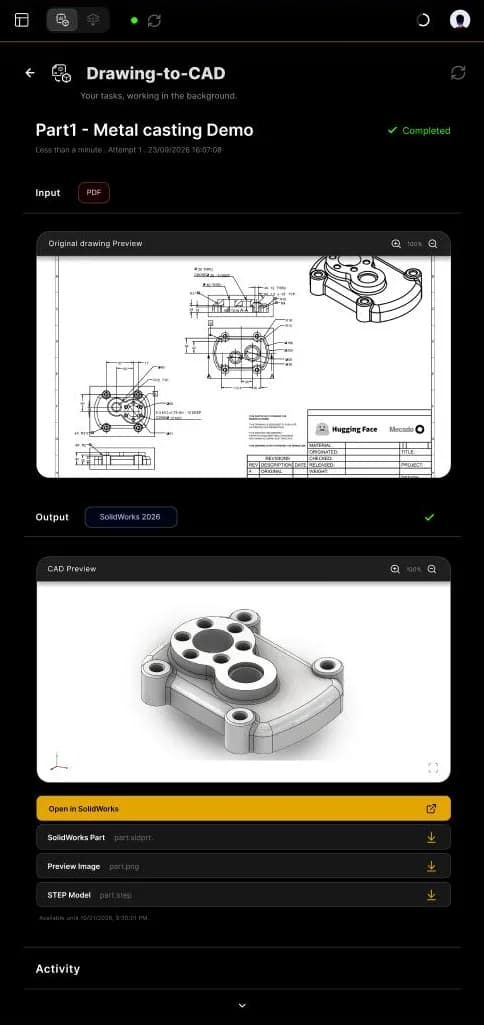
Send a PDF or image drawing and receive an editable native part, a STEP file and a preview image.
- 1
Switch to Background Tasks and click Drawing-to-CAD.
- 2
Click Choose a drawing, or drop it in the area: PNG, JPEG or PDF, up to 20 MB and 40 MP. One part per drawing; for a PDF, only the first page is used.
- 3
Check the Original drawing Preview (zoom with + and -).
- 4
In Deliver for, choose the target: SolidWorks 2026, 2025, 2024 and before, or Other CAD Software (Output: STEP.).
- 5
Click Generate Part. The task appears in Your tasks with the status Pending.
- 6
Follow the Activity log, or click Cancel Task to stop it.
- 7
When the status is Completed, open the task to preview and download the result.
1 · Upload
2 · Preview & deliver
3 · Pending
- Task name
- The name of the task.
- Status
- Pending or Completed.
- Task details
- Duration, attempt, date and time.
- Input
- The type of file you sent.
- Output
- The target version of the result.
- Original drawing Preview
- Zoom in and out.
- CAD Preview
- Rotate the 3D result, or view it full screen.
- Open in SolidWorks
- Opens the part directly.
- Downloads
- The SolidWorks part (.sldprt), a preview image (.png) and the STEP model (.step).
- Availability
- The outputs stay available until this date.
- Activity
- The log of what the agent did.
Send a part and receive a dimensioned drawing. MecAgent uses the part details and the drawing information to choose the views, dimensions and sheet.
- 1
In Background Tasks, click CAD-to-Drawing.
- 2
Choose the part. Its preview appears with its details.
- 3
Check the Part details (material, processes, finish) and the Drawing information (standard, units, sheet sizes).
- 4
Choose the version in Deliver for and click Generate Drawing.
- 5
Follow the task in Your tasks and download the drawing when it is Completed.
Standard views (front, top, side, isometric), section and detail views
Linear, diameter and radius dimensions; a fully dimensioned drawing on request
Datums and critical surfaces you define
Scale, layout and sheet chosen automatically among the allowed sizes
Title block and common annotations
Technical recommendations
Fully define and dimension your part features in the 3D model; define tolerances on the model when possible.
Use your own empty drawing templates to get your company title block.
Add the assembly STEP so that fits and mating faces are taken into account.
Review every drawing before release, especially tolerances and GD&T.
For several parts, the CAD-to-Drawings wizard creates a drawing project in four steps.
- 1
Add parts. Drop the SolidWorks parts (.SLDPRT, required) you need drawings for. Add one assembly STEP (.STEP or .STP, optional but recommended) so the AI sees how the parts mate, which datums they share, and where fits and tolerances matter.
- 2
Setup. The project name, drafting standard, units and sheet sizes (see Project setup).
- 3
Configure parts. For each part: material, function, processes, finish, notes, datums and critical surfaces (see Configure parts).
- 4
Submit. Review and submit. The drawings are generated in the background; use Back and Next to move between the steps.
You can also start a drawing project from the web app, at download.mecagent.com.
These defaults drive every drawing of the project.
| Setting | Options |
|---|---|
| Project name | Required, e.g. "Hydraulic Pump Housing, Rev D" |
| Drafting standard | ISO or ASME Y14.5 |
| Units | Millimetres or inches |
| Sheet sources | MecAgent default, or your own empty drawing templates |
| Sheet sizes | A4 (210×297), A3 (297×420), A2 (420×594), A1 (594×841), A0 (841×1189): select one or more |
Step 3 gives MecAgent what a draftsman would ask you: what the part does, how it is made and which surfaces matter.
| Field | What to enter |
|---|---|
| Material | e.g. Aluminium 6061-T6; its properties are shown (density, modulus, machinability) |
| What does this part do? | Optional: the function of the part in the product |
| Process | One or more, e.g. CNC milling, CNC turning |
| Finish | e.g. As machined |
| Notes | Critical interfaces, customer callouts… |
| Add all dimensions | Tick it for a fully dimensioned drawing |
| Datums | The reference frame for dimensions and GD&T: click a row (Datum A, B, optional C), then pick a face in the 3D viewer |
| Critical Surfaces | Select faces in the 3D viewer (click again to toggle), explain why they are critical, then click Add surfaces. None, one or many groups |
Mating surface: flatness 0.05 mm required.
Text-to-CAD
Send a written brief or a spec sheet and receive a modeled part. Describe the part step by step, with all dimensions, as you would in the CAD Agent.
STEP-to-CAD
Send a STEP file and receive a native part with a feature tree, ready to modify. Ideal for supplier parts you need to adapt.
Macro Generation
Generate a macro in the background while you keep modeling. You will find it in your tasks, then run it and add it to My automations.
A rectangular aluminium enclosure 120 × 80 × 40 mm, 2 mm walls, open top, four M3 bosses Ø6 mm in the corners, 1 mm fillets on outer edges.
Use the CAD Agent (live) when…
- You want to iterate and see each change in your CAD software
- The work depends on your current selection or open assembly
- You refine the result step by step
Use a Background Task when…
- The job is long and you want to keep working
- You have the input as a file (drawing, STEP, brief)
- You want a file back (part, STEP, PDF drawing)
General Knowledges
Teach MecAgent your company context (standards, materials, processes, suppliers) once, and use it on any request.
- Back
- Returns to the chat.
- Background knowledge
- When it is on, your knowledges are used for every request.
- Add new knowledge folder
- Creates a folder (e.g. Tolerances & GD&T).
- Folders
- The number of folders.
- Select, Filter
- Select several folders or filter them.
- Folder
- Its name, date, size and number of files.
- Open folder
- See and manage its files.
- Folder name
- The folder you are editing.
- Drop zone
- Choose your files or drop them here (up to 20 MB).
- Import
- Adds the selected files to the folder.
- Files
- The number of files in the folder.
- File type
- Document, PDF, image, SolidWorks, folder…
- Open
- Opens the file.
- Delete
- Removes the file from the folder.
Create a folder
- 1
Open General Knowledges in the side panel.
- 2
Click Add new knowledge folder and name it.
- 3
Open the folder, choose or drop your files, and click Import. Add an assembly STEP to give the interaction context.
Use it in a request
One folder for one request: + > General Knowledges, then pick it.
All folders, on every request: turn on Activate the background knowledge for each request.
Support
Plans and usage, connection issues, common problems and their fixes, safety and data, good practices and frequently asked questions.
Every plan uses one token allowance shared by all actions: CAD Agent runs, macros, Drawing-to-CAD and CAD-to-Drawing. Yearly billing saves about 17%.
- Free$03,000 tokens / month
- Starter$99/mo.15,000 tokens / month
- Advanced+$499/mo./seat90,000 tokens / month
- EnterpriseCustomShared budget
Follow your usage
In the header, the plan usage indicator shows how much of your allowance is used.
In Settings > Account: the tokens used and the remaining runs per feature.
More tokens or Dashboard: upgrade or manage your plan.
- 1
Click the connection status (green or red dot) in the header, then click the refresh icon.
- 2
Still disconnected? Save your work, open the Windows Task Manager, filter on
solidworksand end every SolidWorks process. Restart SolidWorks, let it fully initialize, then click refresh again in MecAgent. - 3
Still disconnected? Run MecAgent as an administrator, and ask your IT department to allow the app through the firewall: domain
proxy.mecagent.com, port 443, protocol TCP. - 4
Still blocked? Write to [email protected] with your app version (shown at the bottom of the settings).
| Issue | Solution |
|---|---|
| Windows SmartScreen blocks the installer | Click More info, then Run anyway |
| Sign-in loops back to the login screen | Close the app, reopen it and sign in again; check that your network allows proxy.mecagent.com |
| Lost access to your two-factor app | Write to [email protected] to reset two-factor authentication |
| A background task stays Pending | Check its Activity log; cancel it and submit it again if it does not progress |
| An automation fails | Paste the error in the chat and ask the agent to fix it, or rebuild it in smaller steps |
| SolidWorks version not detected | MecAgent is tested on SolidWorks 2024, 2025 and 2026; earlier versions should work but are not guaranteed |
| A macro fails on an older SolidWorks version | Some SolidWorks API features differ between versions: ask the agent to adapt the macro to your version, or use 2024 or later |
Your CAD session
The CAD Agent works in your local CAD session. Requests, the context needed to answer them and the actions to run are exchanged with MecAgent's servers.
Files you send
Files you attach to a request, add to General Knowledges or send to a Background Task are uploaded so they can be processed. Task outputs stay available until the date shown in the task, then expire.
Privacy mode
Available on the Starter and Advanced+ plans.
Enterprise
SOC 2 examination completed, optional fine-tuning on your data or data kept private and never stored, company workspace and admin controls. For large companies, an on-premise deployment can be discussed with our team.
Read more on the Enterprise page and in our Privacy Policy.
Use privacy mode or an Enterprise agreement for sensitive or confidential projects.
Only add to General Knowledges the documents the agent really needs; delete the files you no longer use (trash icon in the folder).
Remove confidential title-block information from drawings you send to Drawing-to-CAD when it is not needed.
Download Background Task outputs before their availability date.
Keep Auto-accept Tool Executions off if you want to approve every change to your model.
Check with your IT department before using MecAgent on export-controlled data.
Questions about security, data or an on-premise deployment? Write to [email protected].