
Every SOLIDWORKS user keeps a mental list of the jobs they dread: renaming 80 files without breaking the assembly, rebuilding a supplier's "dumb" STEP file, dimensioning yet another drawing. None of it is real mechanical engineering. All of it eats your week.
That is exactly where AI for SOLIDWORKS has become useful. Not the chatbot that tells you which menu to open, but agents that work inside the open model: they read the feature tree, run the features, check the result and correct themselves.
Below are 15 SOLIDWORKS tasks you can hand to an AI agent today, with the prompt to use, what SOLIDWORKS already does on its own, and what you should still check yourself. Every example runs with MecAgent, the AI CAD agent that works live in SOLIDWORKS 2024, 2025 and 2026.
Latest (November 2026): SOLIDWORKS Design 2027 is out, and AI is one of its headlines. Dassault Systèmes lists natural-language macro generation, automated assembly instructions and turning prompts, images and legacy drawings into SOLIDWORKS geometry among the new features, delivered through its AI virtual companions and metered with tokens (what's new in SOLIDWORKS 2027). On November 3, OpenAI described how its own hardware teams use ChatGPT and Codex to create and revise CAD models and prepare manufacturing drawings (OpenAI). AI in CAD has moved from answering to doing. This list is about what you can hand off today.
AI for SOLIDWORKS: The 15 Tasks at a Glance
| # | Task | Why it hurts | AI feature | Mode |
|---|---|---|---|---|
| 1 | Model a standard part from a spec | The same sketch, extrude, hole routine, again | Text-to-CAD | Live or background |
| 2 | Rebuild a supplier STEP as a native part | One dead body, no feature tree | STEP-to-CAD | Live or background |
| 3 | Fillet or chamfer dozens of edges | Edge picking, redone after every change | CAD Agent | Live |
| 4 | Turn a PDF drawing into a part | Legacy parts that only exist on paper | Drawing-to-CAD | Background |
| 5 | Design a part in assembly context | References, mates, fully defining | Parts in assemblies | Live |
| 6 | Build an exploded view | Step after step, component after component | Exploded view | Live |
| 7 | Set up a motion study | Motors, mates, timeline | Motion | Live |
| 8 | Apply materials to every part | One part at a time, then the mass | Materials | Live |
| 9 | Drive the design with equations | Global variables linked by hand | Equations | Live |
| 10 | Build a family of configurations | Design tables and rebuild errors | Configurations | Live |
| 11 | Rename files to your convention | Broken references | Renaming | Live |
| 12 | Translate part and feature names | Hundreds of names, one by one | Renaming | Live |
| 13 | Export the supplier pack | STEP, PDF and DXF, file by file | Export | Live |
| 14 | Dimension the drawings | Views, dimensions, sheets | CAD-to-Drawing | Live or background |
| 15 | Turn any of these into a one-click macro | The VBA you never have time to write | Macro mode | Live |
"Live" means the agent works in your open SOLIDWORKS session while you watch. "Background" means you hand off the job and keep modeling while it runs.
Modeling: 4 Tasks to Stop Doing by Hand
1. Model standard parts from a spec sheet
Flanges, brackets, shafts, spacers: most parts in a machine are variations on shapes you have modeled a hundred times. Sketch, dimension, extrude, add holes, add fillets. Pure clicking.
The AI way: describe the part, or attach the spec sheet, and let the agent build it feature by feature. You get a normal feature tree you can edit afterward, not a frozen mesh.
Model a turbine wheel Ø120 mm with 6 blades, 6 splitter blades and a Ø12 H7 bore with keyway.
Check: give dimensions and references. Text-to-CAD shines on well-specified mechanical parts; class-A freeform surfacing from a vague description is still out of reach, as the MecAgent user guide says plainly.
2. Rebuild a supplier STEP file as a native part
A STEP file arrives as one "dumb" body. Changing a hole size means rebuilding the part.
The usual way: SOLIDWORKS' own FeatureWorks can recognize standard features (extrudes, revolves, holes, fillets, chamfers, patterns) on an imported body, automatically or interactively.
The AI way: hand the file to the agent and get back a native part with a real feature tree, either live in your session or as a background task.
Open this supplier STEP and turn it into an editable part with a real feature tree.
Check: compare mass properties with the original before you build on the rebuilt part.
3. Fillet or chamfer dozens of edges in one go
Picking 40 edges, then picking them again when the geometry changes, is the most mind-numbing part of detailing.
The AI way: one sentence, one feature. The agent selects the edges and creates a single Fillet feature you edit like any other.
Add a 2 mm fillet on every outer edge.
Pro tip: if you do this on every part, make it a macro (task 15). Automated edge filleting is one of the most used public macros in the MecAgent library.
4. Turn an old PDF drawing into an editable part
Every company has parts that only exist as a PDF or a scanned drawing. Re-modeling them is a day you never get back.
The AI way: Drawing-to-CAD runs as a background task. Send a PDF or an image of the drawing, keep working, and get an editable native part in your outputs.
Turn this drawing into an editable native part.
Check: a dimension that is illegible on the scan stays a guess. Verify the critical dimensions against the drawing.
Assemblies: 4 Tasks the Agent Handles in Context
5. Design a part in the context of an assembly, then mate it
Brackets, covers, spacers: the parts that connect other parts are designed in context. That means picking references, sketching on the right faces, then mating and fully defining.
The AI way: name the parts it has to connect. The agent picks the references, models the new part in the assembly and adds the mates.
In the conveyor assembly, design a bracket that holds the motor on the frame, then mate it.
Check: in-context design creates external references. Lock or break them once the design is settled, as you would for any in-context part.
6. Build an exploded view, step by step
Exploded views for assembly instructions and manuals are pure craft: one step per component, in the right order, with the right distances.
The AI way: ask for the view and the order you want. The agent builds the explode steps for you.
Build an exploded view of this gearbox, step by step: cover first, then the shafts, then the bearings.
7. Set up a motion study from one sentence
Before you show a mechanism to a customer, you want it moving: a motor, the right mates, a clean animation.
The AI way: describe the motion. The agent sets up the motion study with its motor and timeline.
Set up a motion study: a rotary motor on the main shaft at 60 RPM, over a 10-second animation.
8. Apply materials to every part and update the mass
Mass properties are wrong until every part has its material, and assigning them one part at a time is exactly the kind of job that gets skipped.
The AI way: list the materials once.
Apply our materials to the conveyor: frame and bracket in S235, rollers in 6061 aluminium, then update the mass.
Pro tip: store your company material list as a General Knowledge (see "How to get started" below) and the agent reuses it on every project.
Design Intent: 2 Tasks That Make Models Smarter
9. Drive the design with global variables and equations
A model driven by a few global variables is a model you can resize in seconds. Setting those links up by hand is tedious, so most models never get them.
The AI way:
Drive the conveyor with equations: length and width as global variables, roller count from the length. Then set the length to 1200.
Check: rebuild and look for errors after the first change. The agent reports what it rebuilt, but you know which dimensions carry design intent.
10. Build configurations for a product family
Sizes M6 to M12, short and long versions, left and right hands: configurations are how SOLIDWORKS manages families, often through an Excel design table.
The AI way: give the variants and the values, for instance from an attached table.
Create three configurations of this washer, M6, M8 and M10, with the inner and outer diameters from the attached table.
Files and Data: 3 Tasks Nobody Should Click Through
11. Rename files to your naming convention, references intact
Renaming files outside SOLIDWORKS breaks every assembly and drawing that points to them.
The usual way: Pack and Go copies a model with all its references and can add a prefix or suffix to every file name, or rename files one at a time in its list. Fine for a copy. A real naming convention with descriptions is still manual.
The AI way:
Rename every file with our convention CV-100-### plus a description, and keep the references.
Check: run it on a copy of the project the first time. If your files live in a PDM vault, follow your vault's rules for renaming.
12. Translate part, feature and file names
Assemblies from a subsidiary or a supplier often arrive with names in another language. Translating hundreds of names keeps an intern busy for days.
The AI way: the same renaming engine translates files, parts and features while keeping the references.
Translate every part and feature name in this assembly from German to English, and keep the references.
13. Export the supplier pack: STEP, PDF and DXF in one go
A request for quote means STEP files for the parts, PDFs of the drawings and DXF flat patterns for the sheet metal, all named correctly and zipped.
The usual way: SOLIDWORKS Task Scheduler can run batch jobs at a set time, including exports, and suits fixed recipes you run often.
The AI way: one request, every format, named and packaged.
Export the parts as STEP, the drawings as PDF and the flat patterns as DXF, zipped for the supplier.
Drawings: The Task That Eats Your Fridays
14. Generate dimensioned drawings
Drawings are where models go to wait. Views, dimensions, sheet formats, title blocks: hours per part, multiplied by every part in the project.
The AI way: CAD-to-Drawing generates a dimensioned drawing of the open part or assembly. For whole batches, run it as a background task and set the standard, the units, the sheets, the datums and the critical surfaces up front.
Make an A3 ISO drawing of this turbine wheel, fully dimensioned.
Check: treat it as a strong first draft. Tolerances, GD&T and release remain the engineer's call. MecAgent's own guide is explicit that drawings are not released without engineering review.
Automation: The Task That Multiplies the Other 14
15. Turn any task into a one-click macro
The usual way: the SOLIDWORKS macro recorder captures your actions as a VBA macro that you then edit in the VBA editor. Powerful, if you write VBA.
The AI way: Macro mode. Describe the task, or ask for the steps the agent just ran, and MecAgent writes the macro and saves it to your automations. The AI does its thinking once, when the macro is created. After that, the macro runs as a standard script: fast, predictable, with no AI involved at run time.
Turn that export into a macro I can run in one click on any assembly.
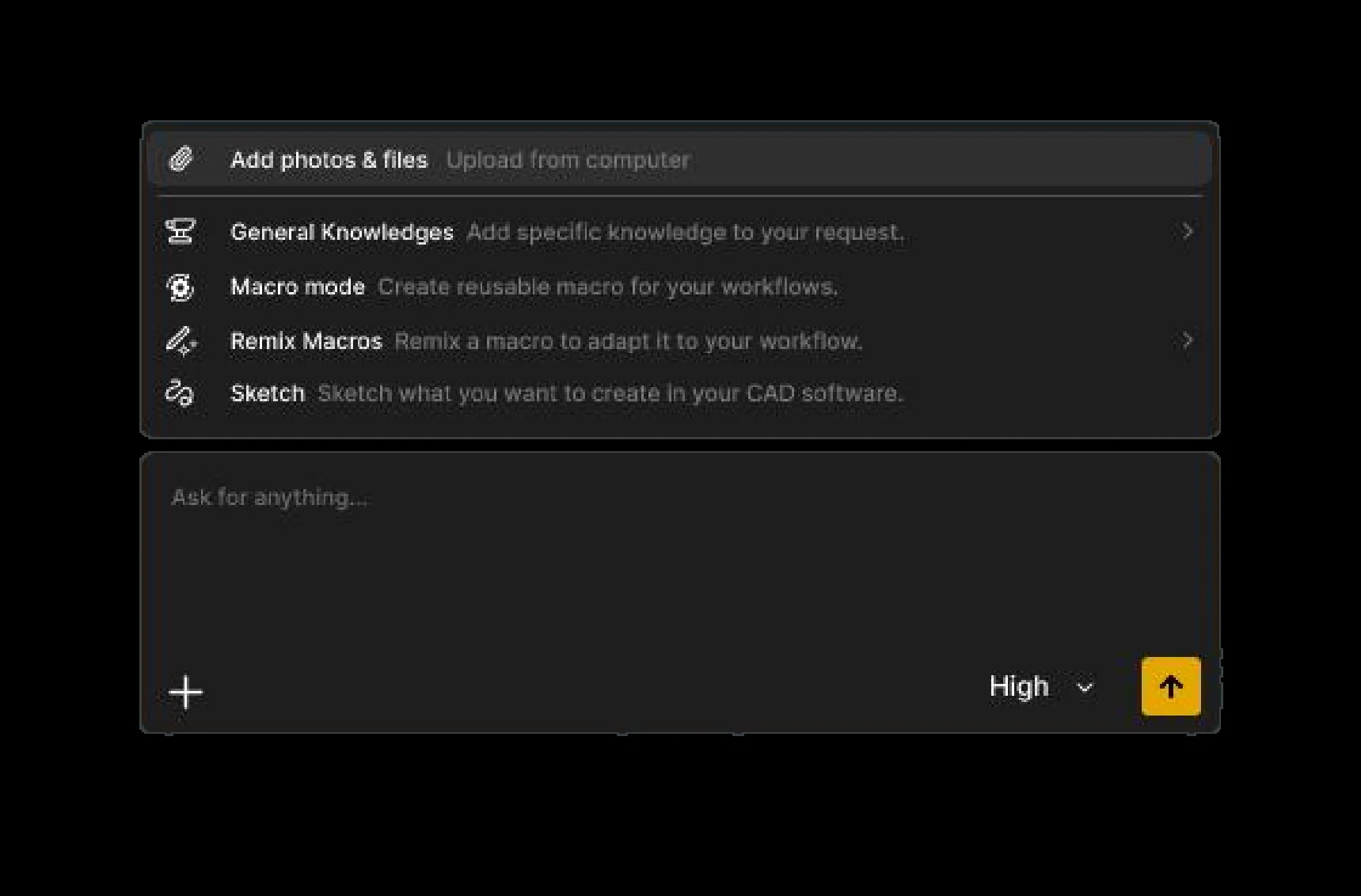
You can share a macro with a link, remix one from the public library, or merge several into one workflow. That is how a one-off request becomes a team standard.
Why the Agent Should Drive SOLIDWORKS, Not Your Mouse
Not every "AI agent" works the same way. Some look at the screen and click, like a person would. Others drive the CAD software through its programming interface, the same API your macros use.
The gap between the two is not subtle. In a June 2026 paper, researchers from Shanghai AI Laboratory and partner universities tested agents on modeling tasks in SOLIDWORKS, Inventor and AutoCAD (ComAct, arXiv). Agents operating the graphical interface scored 0% on SOLIDWORKS part modeling; in the authors' words, "frontier proprietary models achieve near-zero success under GUI-based interaction." Agents writing scripts against the software's COM interface reached 74% with a few worked examples, and 81% with the team's own trained agent.
The lesson when you choose an AI for SOLIDWORKS: ask how it acts. MecAgent works through dedicated CAD tools rather than mouse clicks. It reads the model, runs the features, checks the result and corrects itself. Autodesk is heading the same way: Inventor 2027.2 ships a local MCP server that lets outside agents inspect and change an open Inventor session with the same tools as Autodesk Assistant (Autodesk).
How to Get Started with AI for SOLIDWORKS in 3 Steps
- Install it. Download MecAgent and create a free account. You need Windows 10 or 11 and SOLIDWORKS 2024, 2025 or 2026.
- Connect it. Open SOLIDWORKS, then MecAgent. It connects to your session, and the connection status stays visible in the top bar.
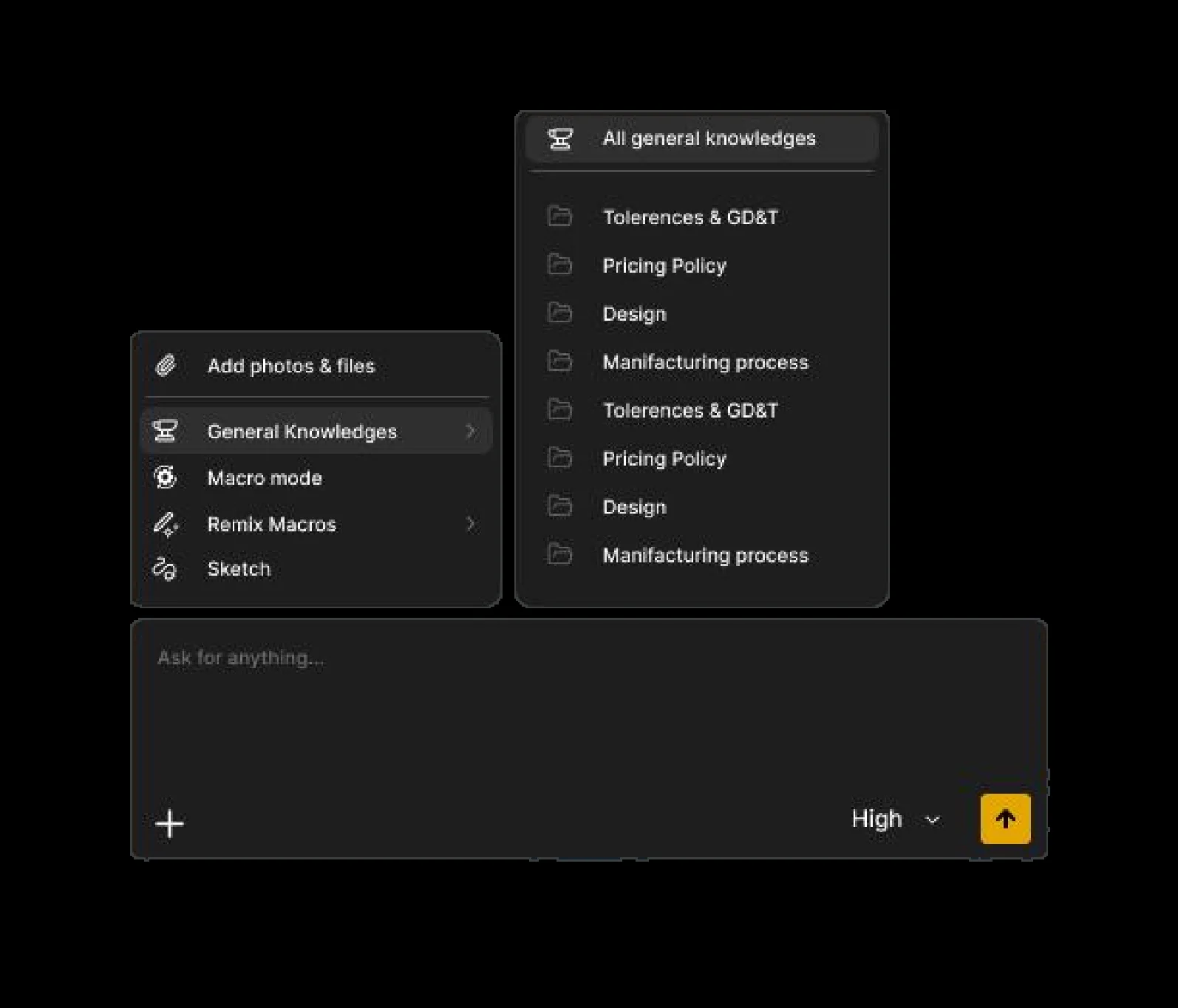
- Start small. Pick a low-risk task from this list, like an export pack or a rename on a copy. When the result is right, save it as a macro. Then add your standards, material lists and naming rules as General Knowledges, so the agent applies them every time.
Want to see these tasks before you install anything? Every use case is filmed in the demo library.
What About Inventor, CATIA, NX, Creo, Fusion 360 and Onshape?
MecAgent works natively in SOLIDWORKS today. If your team also runs Autodesk Inventor, CATIA, Siemens NX, PTC Creo, Autodesk Fusion (Fusion 360) or Onshape, the MecAgent web app runs background tasks and delivers STEP parts and PDF drawings that open in any CAD software. Native add-ins are on the roadmap, Inventor first, then Siemens NX and CATIA (details in the user guide).
Each vendor is also building its own AI, from guidance assistants to companions that start to act on the model:
| CAD software | The vendor's own AI, as of November 2026 |
|---|---|
| SOLIDWORKS | AURA and LEO, Dassault Systèmes' virtual companions, through the 3DEXPERIENCE platform, with usage metered by tokens (overview) |
| CATIA and 3DEXPERIENCE | AURA, LEO and MARIE, generally available on 3DEXPERIENCE SaaS since the R2026x FD03 release (Dassault Systèmes) |
| Autodesk Inventor | Autodesk Assistant, which since Inventor 2027.2 also writes iLogic rules, event triggers included |
| Autodesk Fusion (Fusion 360) | Autodesk Assistant, generally available to all Fusion users, with eligible usage counted against a monthly Flex token allowance (Autodesk) |
| Siemens NX (now Designcenter) | Designcenter Copilot, expert guidance inside the workflow (Siemens) |
| PTC Creo | Creo AI Assistant in Creo 13: guidance available now, model analysis in beta (PTC) |
| Onshape | AI Advisor, a built-in question-and-answer assistant that doesn't generate designs (Onshape) |
The vendors' assistants are worth turning on. Where MecAgent fits next to them: one agent that acts live in your model, runs long jobs in the background, and turns what works into macros your whole team can run.
What AI Still Won't Do for You
- Release your work. Drawings and parts still need an engineer's review before release.
- Guarantee compliance. Certification and regulatory sign-off stay with you.
- Read your mind. Vague requests give vague parts. Dimensions, references and naming rules make the difference: see how to prompt.
- Apply rules it was never given. Company standards have to be provided, as General Knowledges or templates.
Bottom Line
AI for SOLIDWORKS does not pay off in a demo. It pays off in the hours you stop losing to clicks. Pick the three tasks on this list that cost you the most time, hand them to an agent this week, and keep the ones that work as macros. In a month, the routine half of your job will look very different.
FAQ
What is the best AI for SOLIDWORKS?
It depends on what you want the AI to do. Dassault Systèmes' own virtual companions, AURA and LEO, bring guidance, validation and a growing set of generative skills to SOLIDWORKS Design through the 3DEXPERIENCE platform, with usage metered by tokens. If you want an AI that acts inside your open model (modeling, assemblies, drawings, exports and macros), MecAgent is built for that and runs live in SOLIDWORKS 2024, 2025 and 2026.
Does SOLIDWORKS have built-in AI?
Yes. SOLIDWORKS Design includes AI features such as Command Predictor, Sketch Repair, fastener recognition and automated drawing generation. Dassault Systèmes' virtual companions go further through the 3DEXPERIENCE platform: AURA answers context-aware questions about your active design, and LEO turns specifications, prompts and legacy data into parametric models. Access is included with commercial SOLIDWORKS Design licenses, and AI skills are metered with tokens. SOLIDWORKS Design 2027, which Dassault Systèmes announced in October 2026, adds natural-language macro generation and automated assembly instructions.
Can AI create a SOLIDWORKS part from text?
Yes. With text-to-CAD, you describe a part (or attach a spec sheet) and the agent models it with an editable feature tree. Results are best with clear dimensions and references; complex freeform surfaces from a vague description remain out of reach.
Can AI write SOLIDWORKS macros?
Yes. MecAgent's Macro mode turns a plain-language request into a reusable SOLIDWORKS macro, saved to your automations. Because the AI works at creation time, the macro then runs as a regular script, without AI, as fast and predictably as one written by hand.
Is it safe to use AI on company CAD files?
Ask any vendor how your data is handled. For MecAgent: an independent SOC 2 examination is complete (the report is available under NDA), paid plans include a privacy mode, and Enterprise customers can run it on-premise or in a private cloud. Details are on the pricing page and the Enterprise page.
Which SOLIDWORKS versions does MecAgent support?
MecAgent is tested on SOLIDWORKS 2024, 2025 and 2026, on Windows 10 and 11. Earlier versions should work but are not guaranteed, since some features and macros depend on the SOLIDWORKS version.
Sources
- SOLIDWORKS Help: Overview of FeatureWorks
- SOLIDWORKS Help: Pack and Go dialog box
- SOLIDWORKS Help: SOLIDWORKS Task Scheduler
- SOLIDWORKS Help: Recording and playing macros
- Dassault Systèmes: What's new in SOLIDWORKS Design 2027, SOLIDWORKS Design 2027 is here, SOLIDWORKS AI overview, Industrial AI in CATIA R2026x FD03
- Ai et al., ComAct: Reframing Professional Software Manipulation via COM-as-Action Paradigm, arXiv, June 2026
- OpenAI: Accelerating engineering for the physical world, November 3, 2026
- Autodesk: What's new in Inventor 2027.2, Autodesk Assistant in Fusion
- Siemens: Designcenter, June 2026 release
- PTC: Creo 13 and the Creo AI Assistant, Onshape AI Advisor
- MecAgent: user guide, release notes