

What CAD-to-Drawing produces
You give MecAgent a part. It returns a 2D technical drawing of it:
- standard views (front, top, side, isometric), plus section and detail views;
- linear, diameter and radius dimensions, and a fully dimensioned drawing on request;
- the datums and critical surfaces you define;
- scale, layout and sheet size chosen automatically among the sizes you allow;
- a title block and the common annotations.
Three ways to run it
| For | How | |
|---|---|---|
| Live, in the CAD Agent | The part you have open | Ask in the chat: "Make an A3 ISO drawing of this turbine wheel, fully dimensioned." |
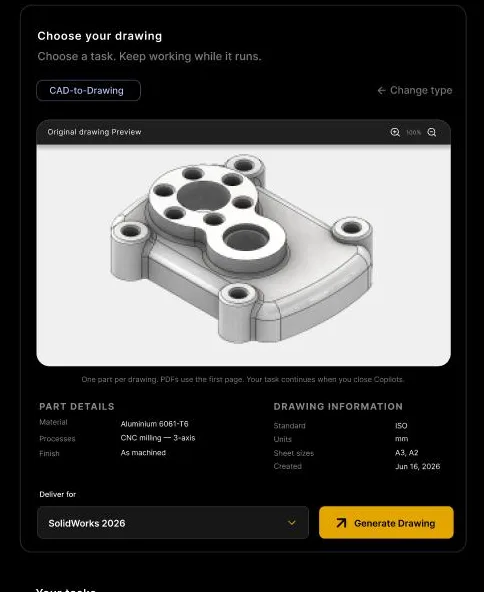
| One part, in the background | A drawing you do not want to wait for | Background Tasks → CAD-to-Drawing: choose the part, check its details, click Generate Drawing |
| A whole project | Several parts of the same product | The CAD-to-Drawings wizard: add parts, set up, configure each part, submit |
Background drawings run on MecAgent's servers: your CAD software stays free, and the task continues if you close MecAgent. Drawing conversions start with the Starter plan.
The project wizard, step by step
For several parts, the wizard gives MecAgent what a drafter would ask you.
- Add parts. Drop the SOLIDWORKS parts (
.SLDPRT) you need drawings for. Add the assembly as STEP (optional, recommended): it shows how the parts mate, which datums they share, and where fits and tolerances matter. - Setup. The defaults for every drawing of the project:
| Setting | Options |
|---|---|
| Drafting standard | ISO or ASME Y14.5 |
| Units | Millimetres or inches |
| Sheet sizes | A4, A3, A2, A1, A0: select one or more |
| Sheet source | MecAgent's default, or your own empty drawing templates with your title block |
- Configure parts. For each part: material, what the part does, manufacturing process, finish, notes, the datums (A, B and an optional C, picked on a face in the 3D viewer) and the critical surfaces with the reason they matter, for example "Mating surface: flatness 0.05 mm required."
- Submit. The drawings are generated in the background and delivered with the part file next to each drawing.
MecAgent picks the smallest allowed sheet that fits each part at a sensible scale. You can also start a drawing project from the web app.
How long it takes
Since MecAgent 2.14.0 (10 November 2026), CAD-to-Drawing projects come back in 30 minutes to 10 hours. A drawing of the open part, asked live in the chat, is made while you watch.
Background tasks are performed primarily by automated AI systems. A person at MecAgent may complete, review or correct a task before it is delivered.
Get better drawings: four recommendations
- Define the model fully. Dimension your features in 3D, and put tolerances on the model when you can.
- Use your own templates. Empty drawing templates carry your company title block into every sheet.
- Add the assembly STEP. Fits and mating faces are then taken into account.
- Say what matters. Datums and critical surfaces are where a drawing earns its keep: name them.
The other direction: Drawing-to-CAD
MecAgent also reads drawings. Send a PDF or an image of a drawing (PNG, JPEG or PDF, up to 20 MB) and receive an editable native part, a STEP file and a preview image. One part per drawing; for a PDF, the first page is used.
Typical use: legacy parts that only exist on paper, or a supplier drawing you need as a model.
Which CAD software
| CAD software | Drawings with MecAgent |
|---|---|
| SOLIDWORKS 2024, 2025, 2026 | Native: drawings of the open part live, or in the background from your part files |
| Other CAD software | Through the MecAgent web app: drawings are delivered as PDF, which opens anywhere |
What it does not do
- Release. Review every drawing before release, especially tolerances and GD&T. MecAgent speeds up the drafting; the engineer signs the drawing.
- Certification. It does not guarantee the certification or regulatory compliance of a drawing.
- Rules it was never given. Company drafting rules belong in your templates and in General Knowledges.
Drawings in volume
If your company mainly needs drawings, in volume and on a regular basis, MecAgent quotes an offer sized for your workload: contact the team.
Your data
Parts sent to a Background Task are uploaded to MecAgent's servers to be processed, and the outputs stay available until the date shown in the task. On the paid plans, your files are not used to train MecAgent's models. The details are on the security and data page.
Sources
- MecAgent user guide: CAD-to-Drawing, what drawings it can generate, the CAD-to-Drawings project, Drawing-to-CAD
- Release notes: MecAgent 2.14.0 (turnaround) and 2.13.0 (part file delivered with each drawing)
- Terms and Conditions, Section 5.6: cloud processing and human assistance
- Demo library: CAD-to-Drawing on video